Microsoft Teams (Chat)
How to use our Microsoft Teams Chat Integration.
How to get your Team’s Channel URL
-
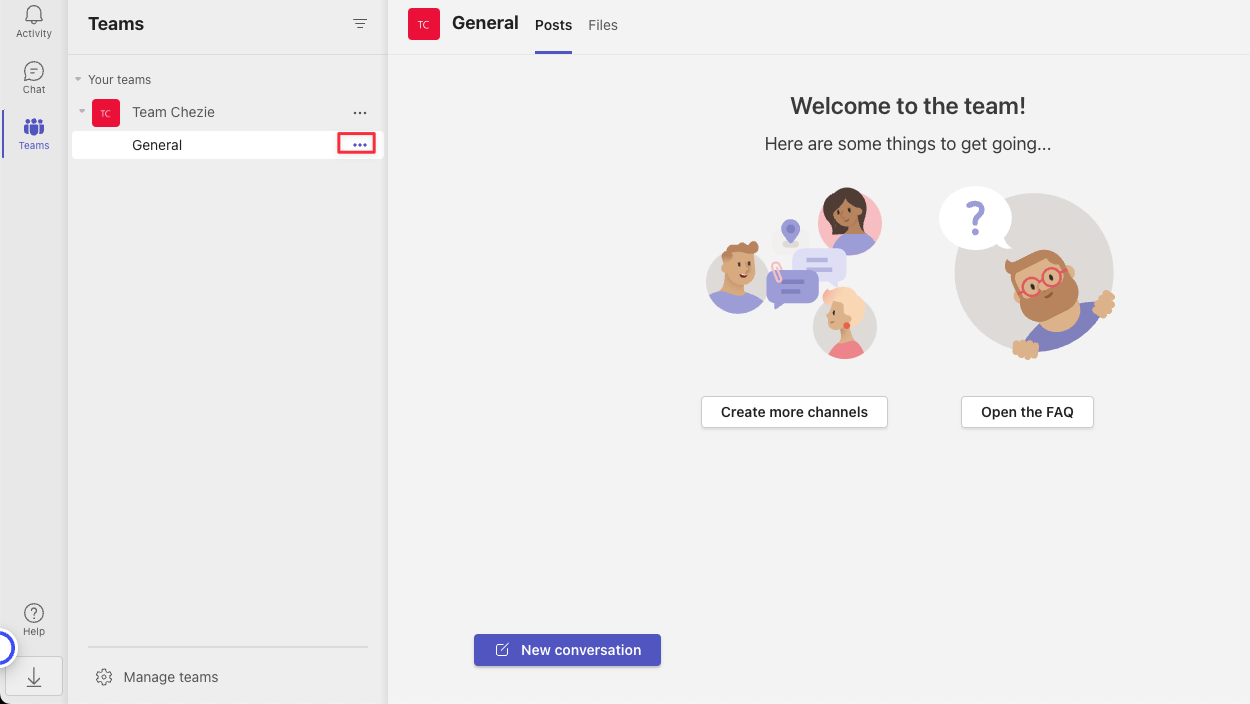
Find the channel for your Group
-
Hover over the channel and click on the three dots to the right
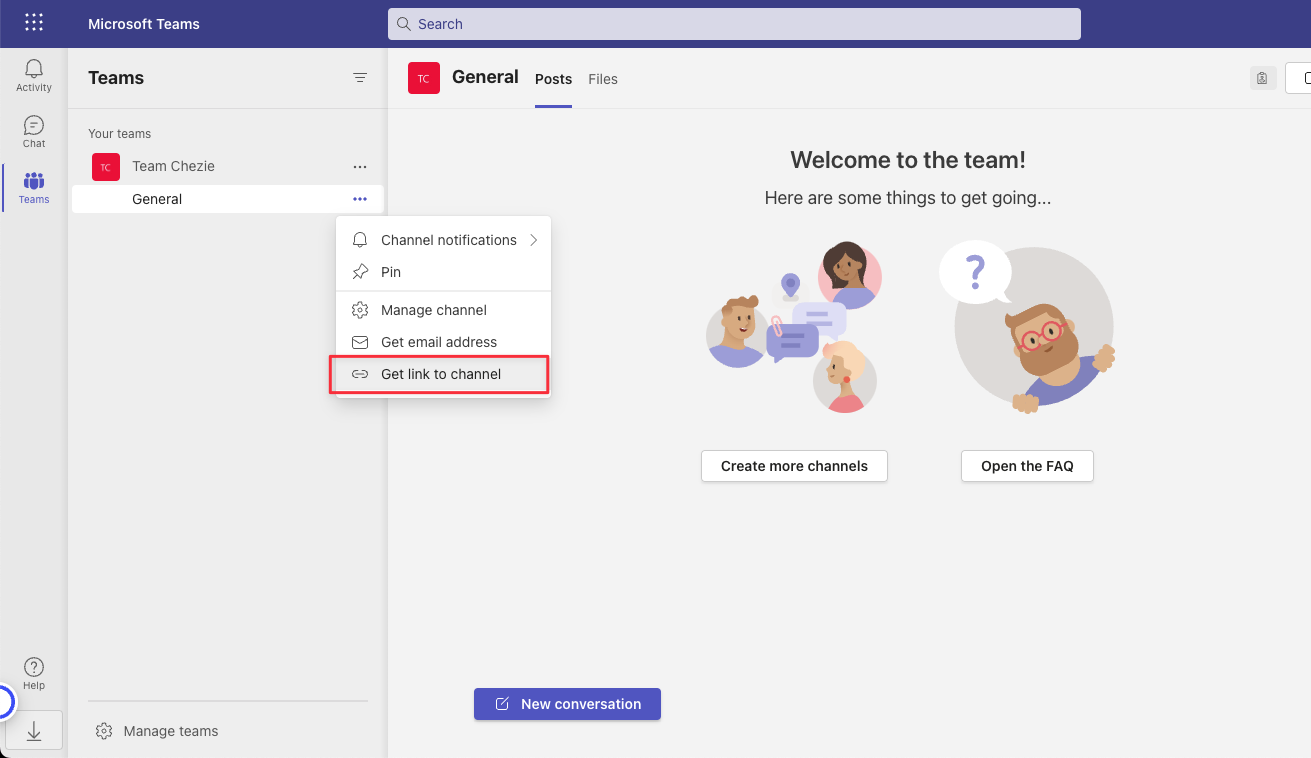
- Click Get link to channel
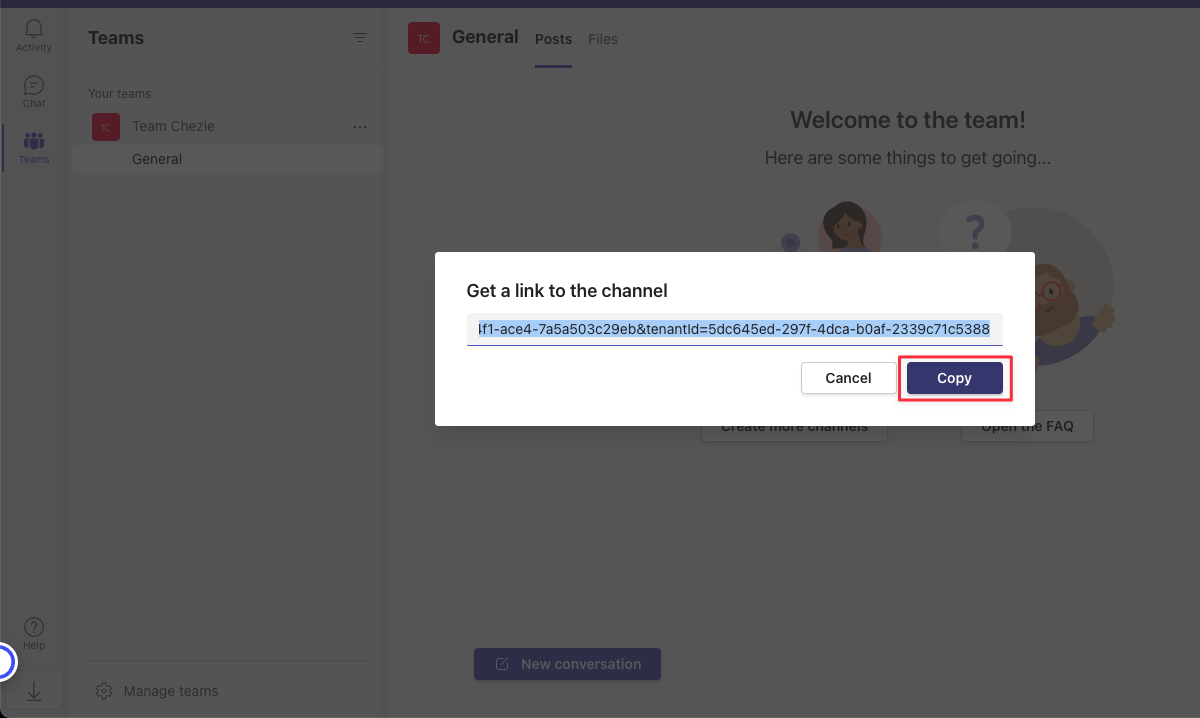
- Click Copy to copy the link to your clipboard
How to connect a Teams channel to a Group
-
Log-in to Chezie
-
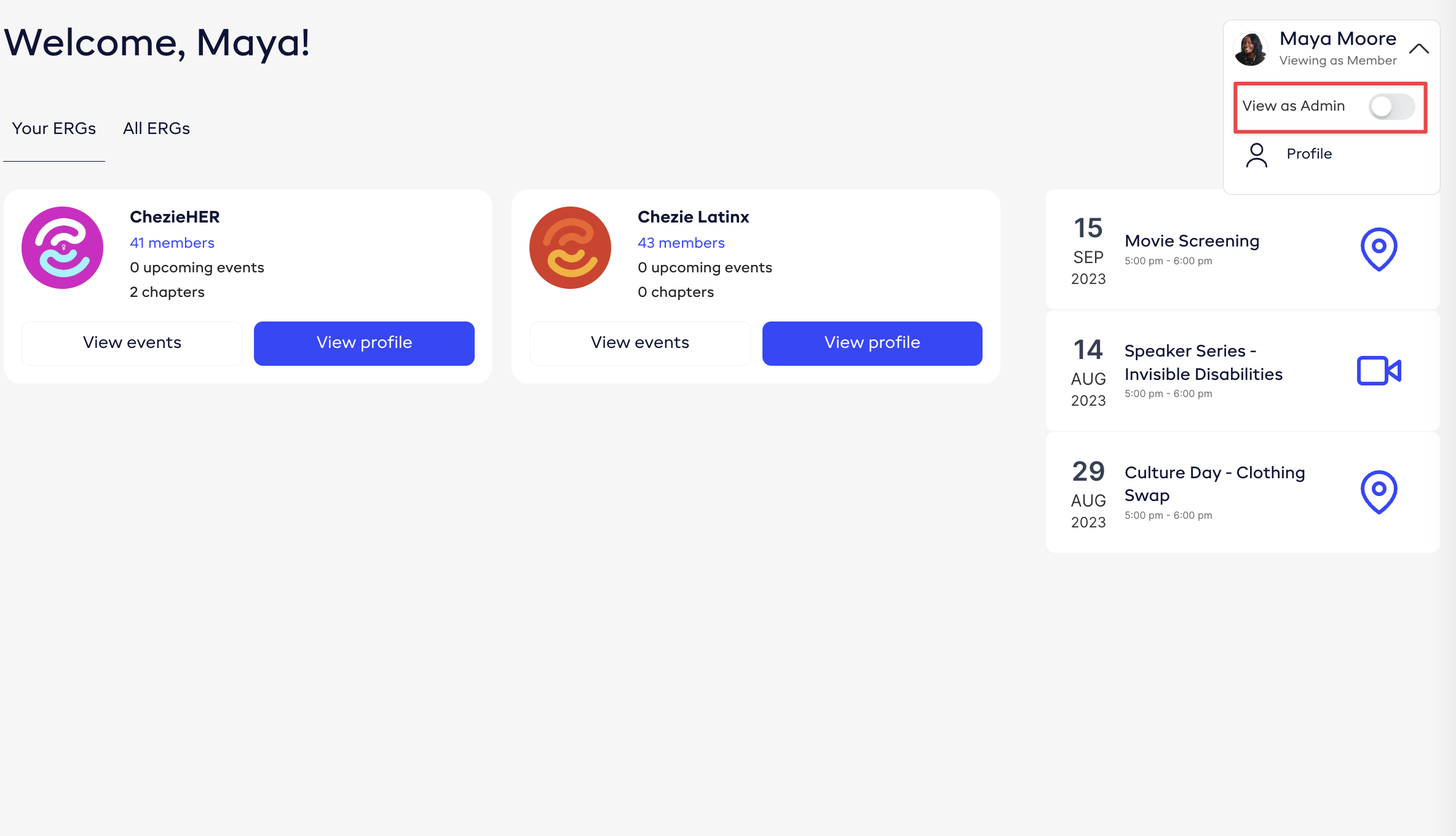
Click the profile dropdown and switch to Admin view.
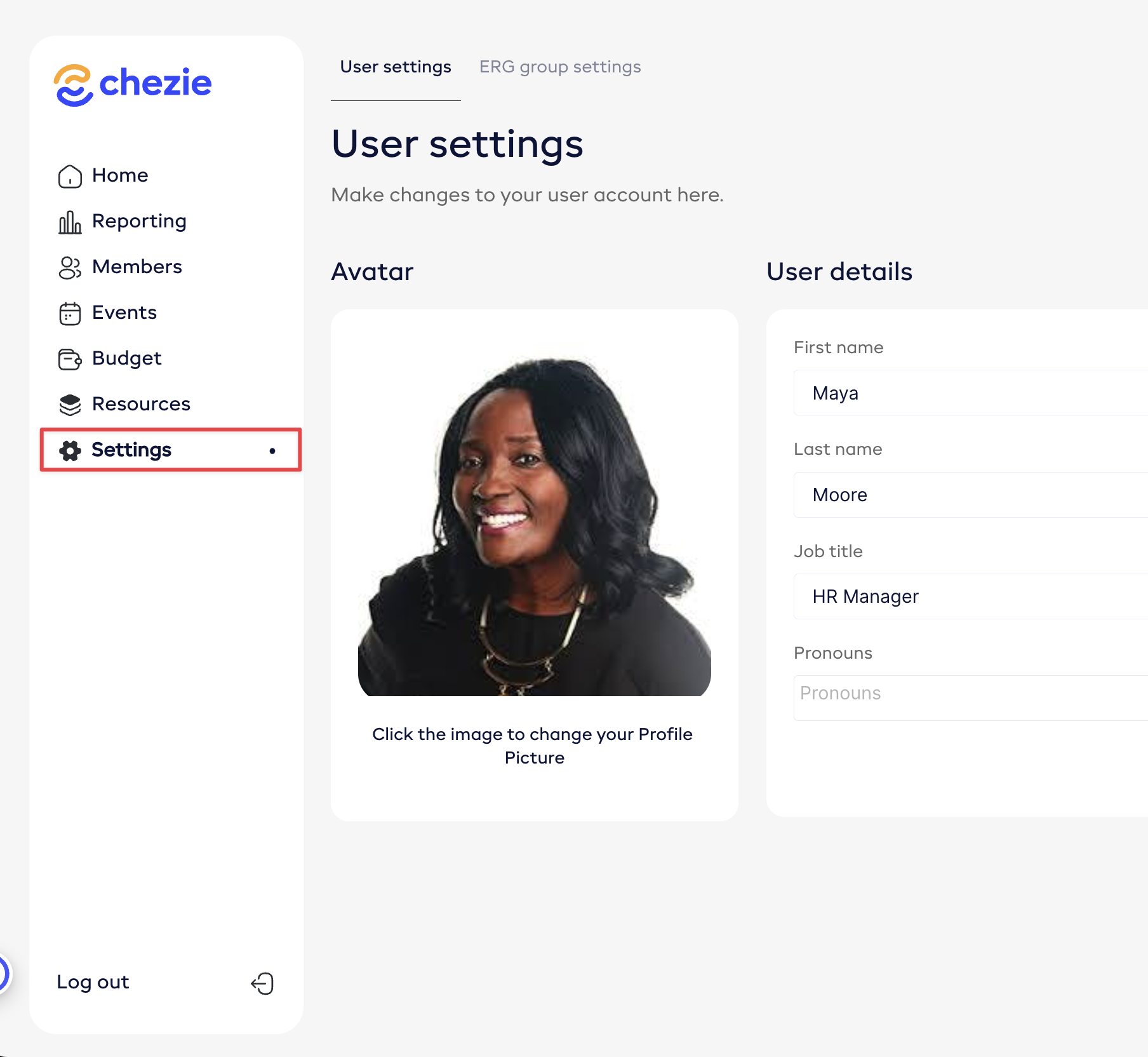
- Click the Settings tab on the side bar.
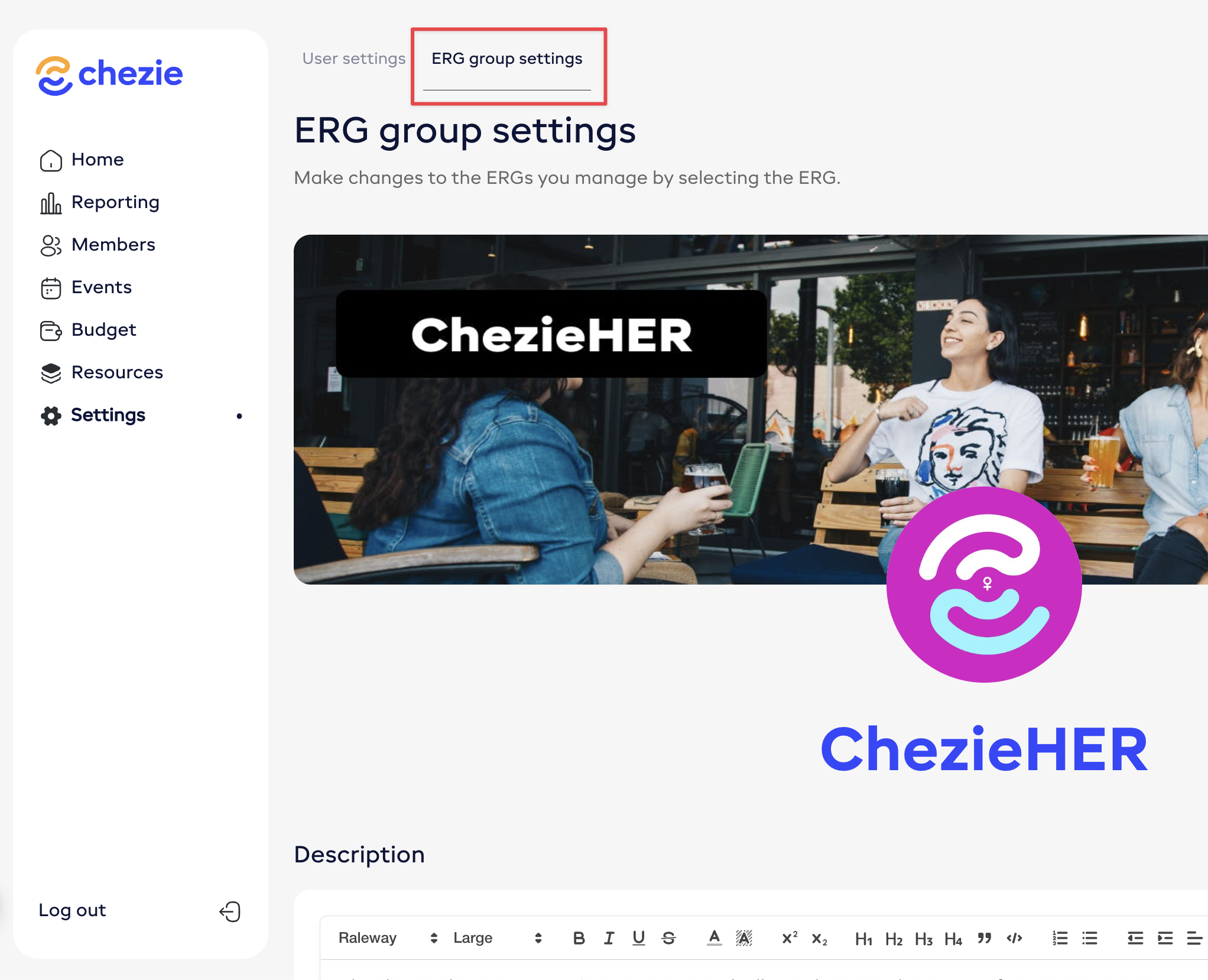
- Click ERG group settings
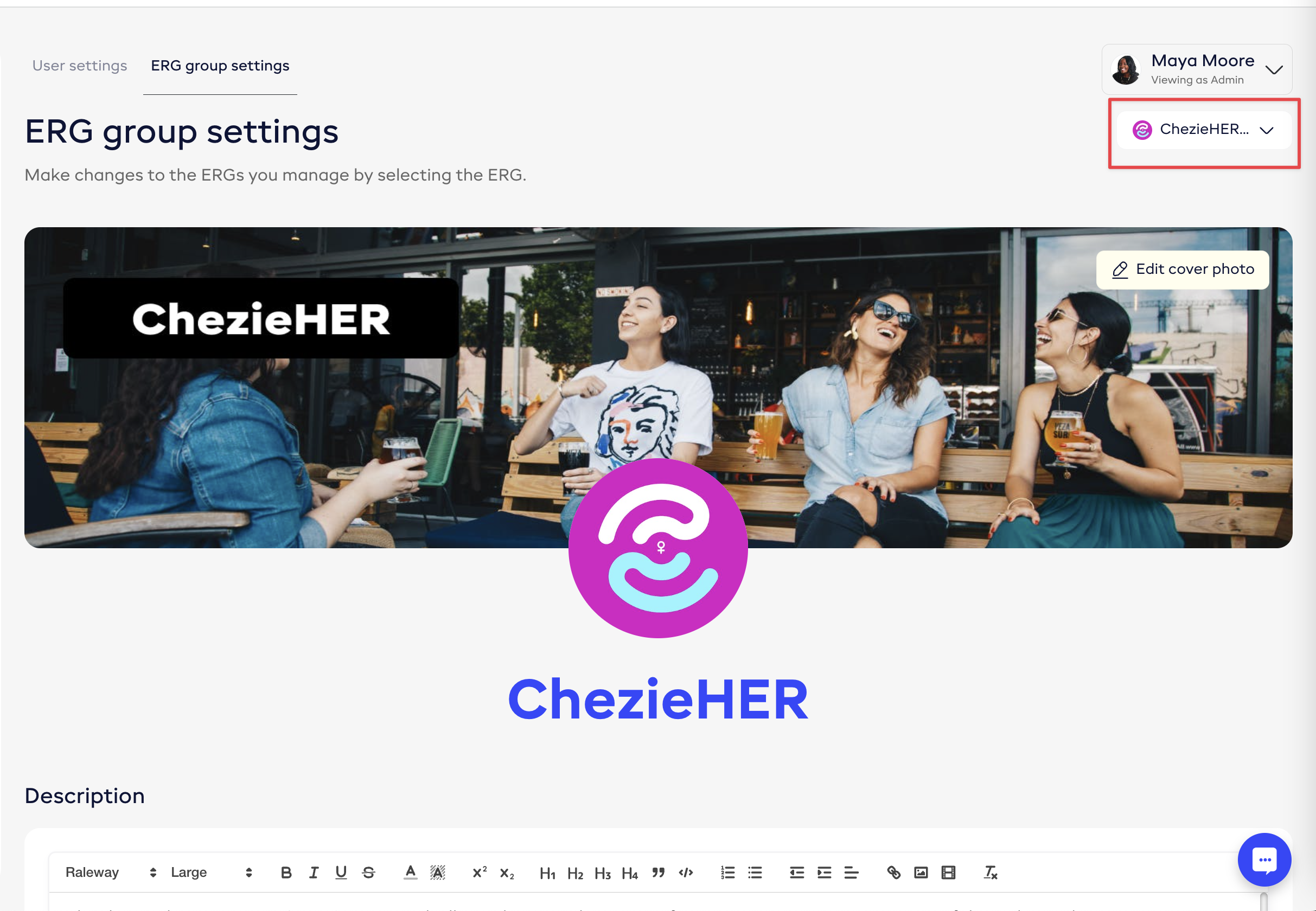
- Select the Group that you want to add a Slack channel for
- Paste your Teams channel’s URL into the field
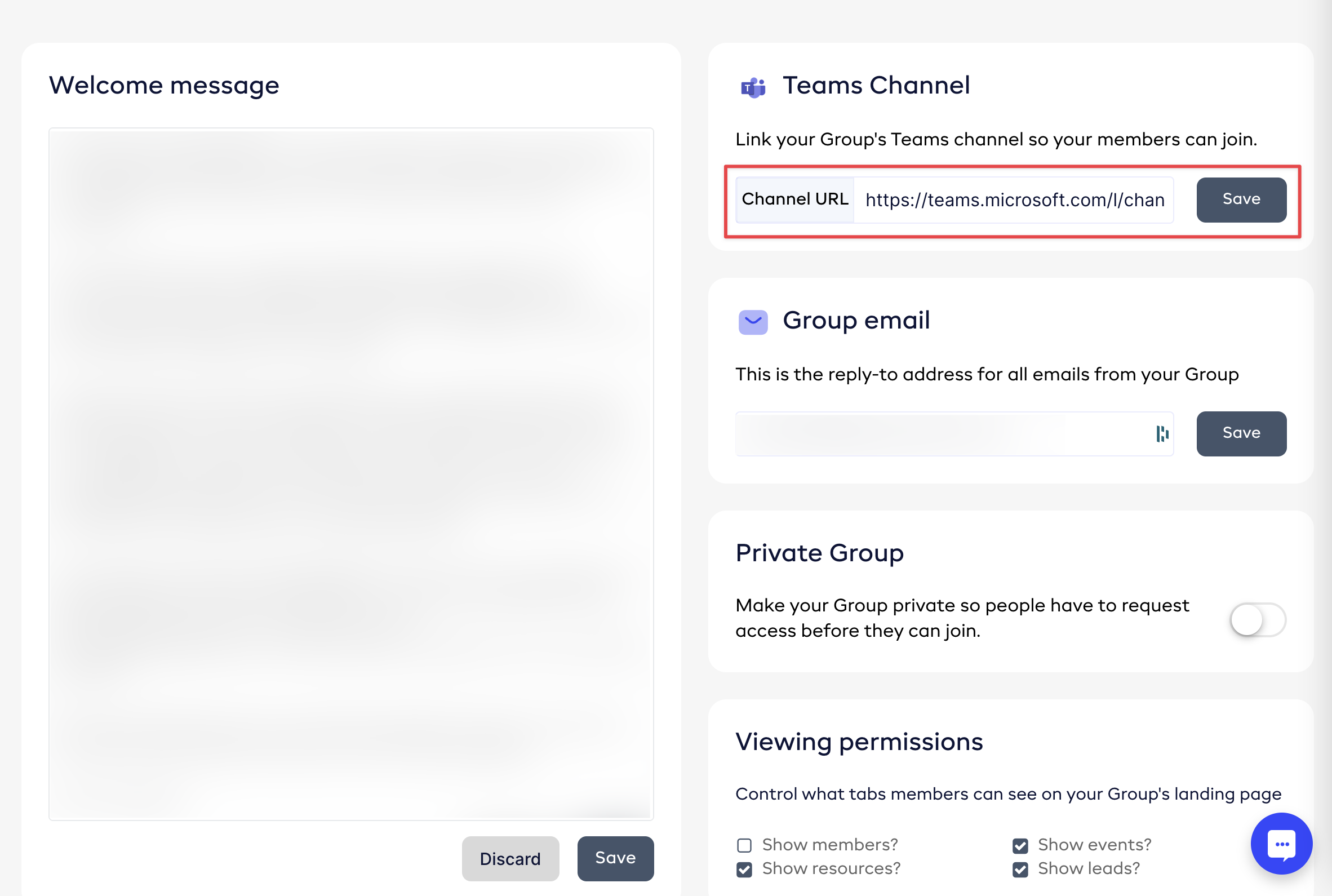
- Click Save when you’re done
Teams Integration - IT Details
Permissions
Below is a table that list all of the permissions that our Teams Chat integration uses along with an explanation of each permission.
Chezie Microsoft Teams Integration – Common IT Q&A
Who is the “user” when actions are logged?
-
Calendar events: The service account (e.g., ergs@company.com) is always the user. Events will show that account as the organizer.
-
Teams meetings: The organizer remains the service account, but the Chezie app identity is what accesses meeting attendance data, since Microsoft Graph requires application permissions for that.
-
Teams channels: The “user” is the account that authenticated with the Chezie app (for example the service account). Chezie only has access to the channels that this account itself has access to. To avoid tenant-wide approval, the recommended setup is to grant the service account access only to ERG-related channels. As a result, Chezie can listen to or sync activity only for those channels.
Why do I see two permission dialogs during setup?
Because there are two flows:
-
Delegated permissions tied to the service account, which allow calendar and channel actions in the scope of that account.
-
Application permissions for the Chezie app identity, which are required only for Teams meeting attendance and similar background tasks.
How does Chezie get access to Teams channels?
The Teams channel URL maps each ERG in Chezie to a specific Teams channel. The service account you configure with Chezie must already have access to those channels. Chezie then uses the delegated permissions of that authenticated account to interact with those channels. Because the service account is scoped only to ERG-related channels, Chezie never has visibility into tenant-wide Teams data.
What events are logged for Teams channels?
-
Chezie logs ERG membership changes (join or leave) inside Chezie.
-
If the service account has the correct channel permissions, these changes are synced with the connected channel.
-
Messages and activity are only logged if the relevant Graph permissions are granted, and always limited to channels that the authenticated service account can access.
What does “app identity” mean in this context?
App identity refers to Chezie acting as the registered application in your Azure directory, not as an admin or employee. It applies only when application-level permissions are needed, such as reading Teams meeting attendance. For channels, Chezie relies on the authenticated service account’s delegated permissions and channel access.
Does Chezie need tenant-wide permissions?
No. Tenant-wide permissions like Group.ReadWrite.All are not required. By scoping the service account’s access to only ERG-related channels, Chezie can function without tenant-wide approval.