How to get an attendance report
Easily access and generate detailed attendance reports for your events.
Zoom
-
Sign in to the Zoom web portal.
-
In the navigation menu, click Analytics & Reports.
-
Click the Usage Reports tab.
-
Click Usage.
-
At the top, use the following functionalities to sort the data by meeting:
-
Search by time range: Select a time range (within a month) using the From and To fields, then click Search.
-
Search by meeting ID: Enter the meeting ID in the search box, then click Search.
-
-
Export CSV files:
-
Export the entire list of meetings on the Usage page:
- At the top of the Usage page, click Export as CSV File.A CSV will download, including all the listed meetings in the Usage page.
-
Export a specific meeting's list of participants:
-
Locate your meeting, then click the participant count (number) under the Participants Source column.A pop-up window with the list and details of internal and external meeting participants will appear. This will show you a list of meeting participants, including join and leave times. Note: This includes all participants except Waiting Room users.
-
(Optional) In the top-left corner of the window, select the following checkboxes:
-
Export with meeting data: The Zoom meeting data will be included in the exported attendee list.
-
Show unique users: The unique users will be included in the exported attendee list. Note: If the participant is a Guest, and no emails were uploaded to Zoom in any form (for example, by entering emails to register to join the meeting, or the host provided the participants' email to Zoom), the guest email is hidden.
-
-
Click Export. A CSV file will download.
-
-
Microsoft Teams
After the meeting
You'll find the attendance report in a few different places.
In the meeting invite
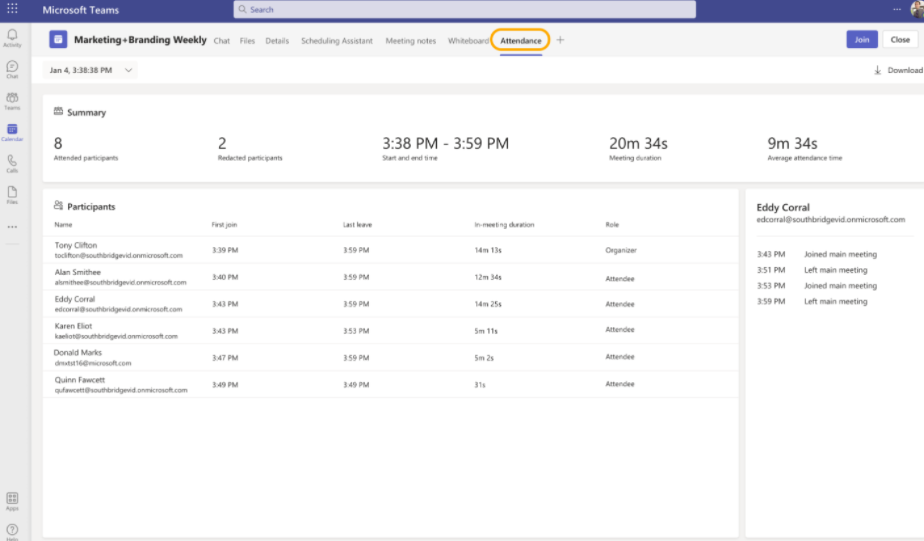
In Teams, go to Calendar, open the meeting, and select the Attendance tab. You can view the data directly in Teams.
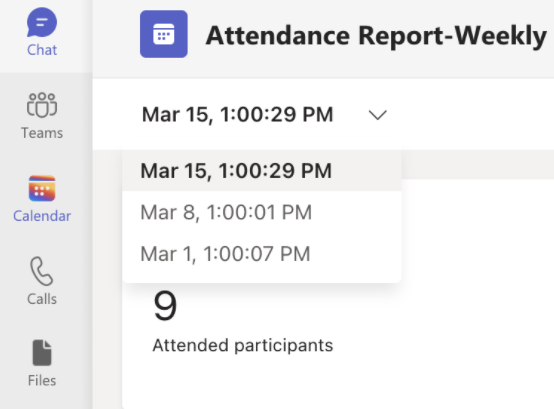
For recurring meetings, select the report you want to view from the dropdown list.
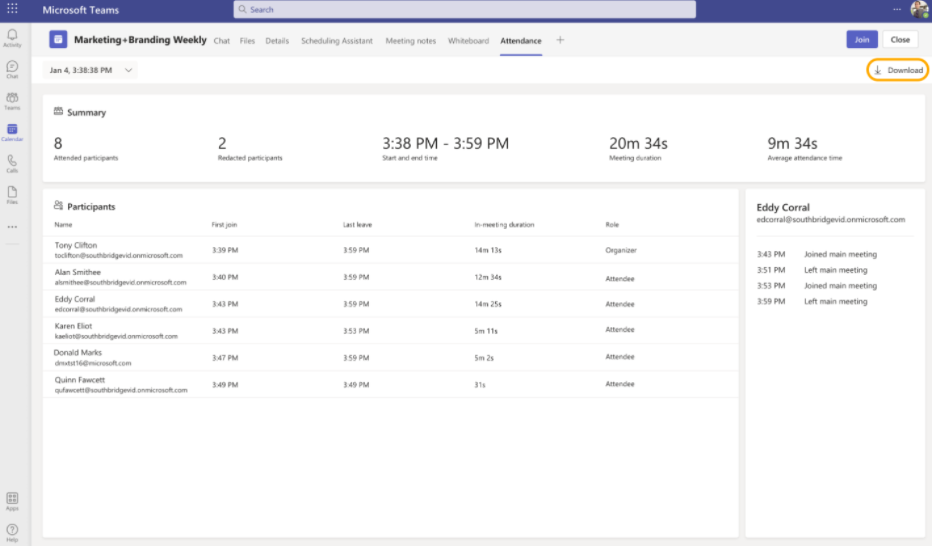
To download the attendance CSV file for the meeting, click Download.
In the meeting chat
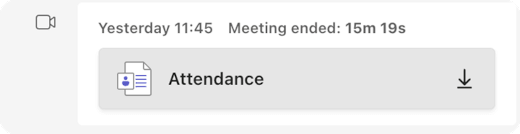
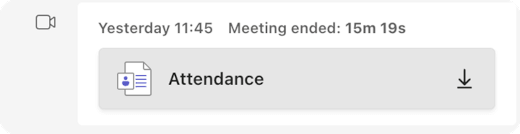
A tile labeled Attendance report will pop into the chat about five minutes after your meeting ends. Select it to download the CSV file.
In the meeting chat
A tile labeled Attendance report will pop into the chat about five minutes after your meeting ends. Select it to download the CSV file.
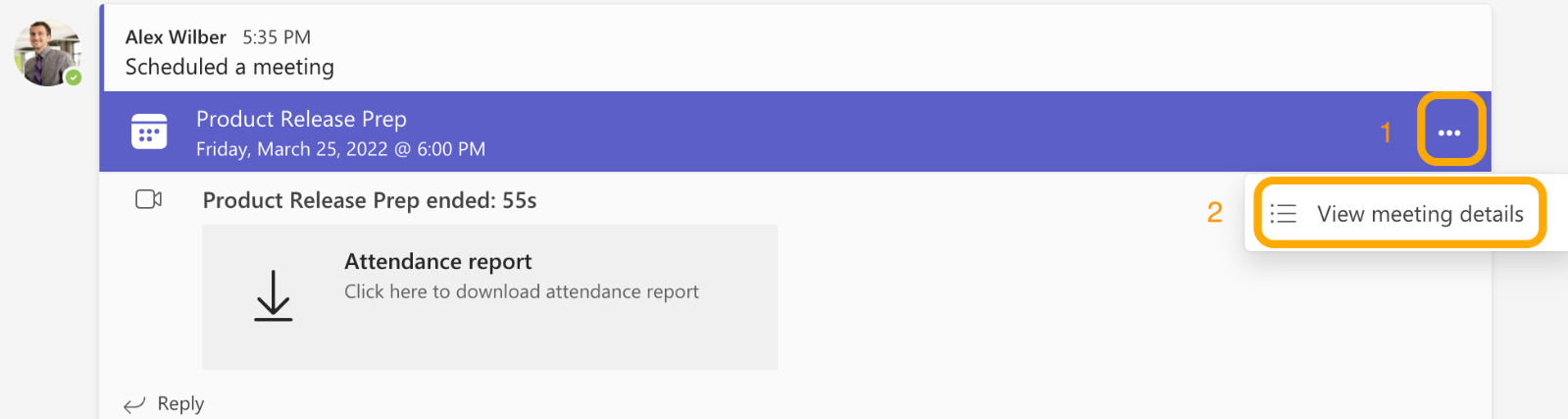
Scheduled channel meetings
To view the attendance reports for meetings created in channels, click More actions > View meeting details, and navigate to the Attendance tab.

In-person Events
To record attendance for an in-person event, you can upload a list of attendee email addresses directly into Chezie.
File Format:
Before uploading, make sure you have:
-
Excel (.xlsx) or CSV (.csv) file
-
One column containing attendee email addresses only
Notes:
-
A header is optional but allowed
-
No additional columns, formatting, notes, or merged cells
-
How to Upload the Attendance File:
-
Log in to Chezie.
-
Open the event you hosted.
-
Go to Attendance.
-
Click Upload Attendance List.
-
Select your Excel or CSV file.
-
Click Upload / Submit.
-
Wait while Chezie processes the attendee list.
Need Support?
If you encounter an error or need help matching attendees:
- Email us at support@chezie.co