Join Forms
How to customize the join form for your ERG
Customizing your form
When to customize your join form
We highly suggest you change your group’s join form sparingly and be thoughtful about it.
As a best practice, whenever new Group leads are brought on, review the existing join form and previous responses to see if either:
-
Any additional data points you’d like to collect, or
-
None of the data points currently collected are relevant.
At most, you should change your join form once a year.
Changing an existing join form
When you change your Group’s join form, members who have responded to the old join form but haven’t responded to the new one will be prompted to Finish joining in Chezie.

How to customize your join form
Watch this short video to learn how to customize your join form.
Accessing form responses
To access your form responses, follow these steps:
-
Go to Admin view
-
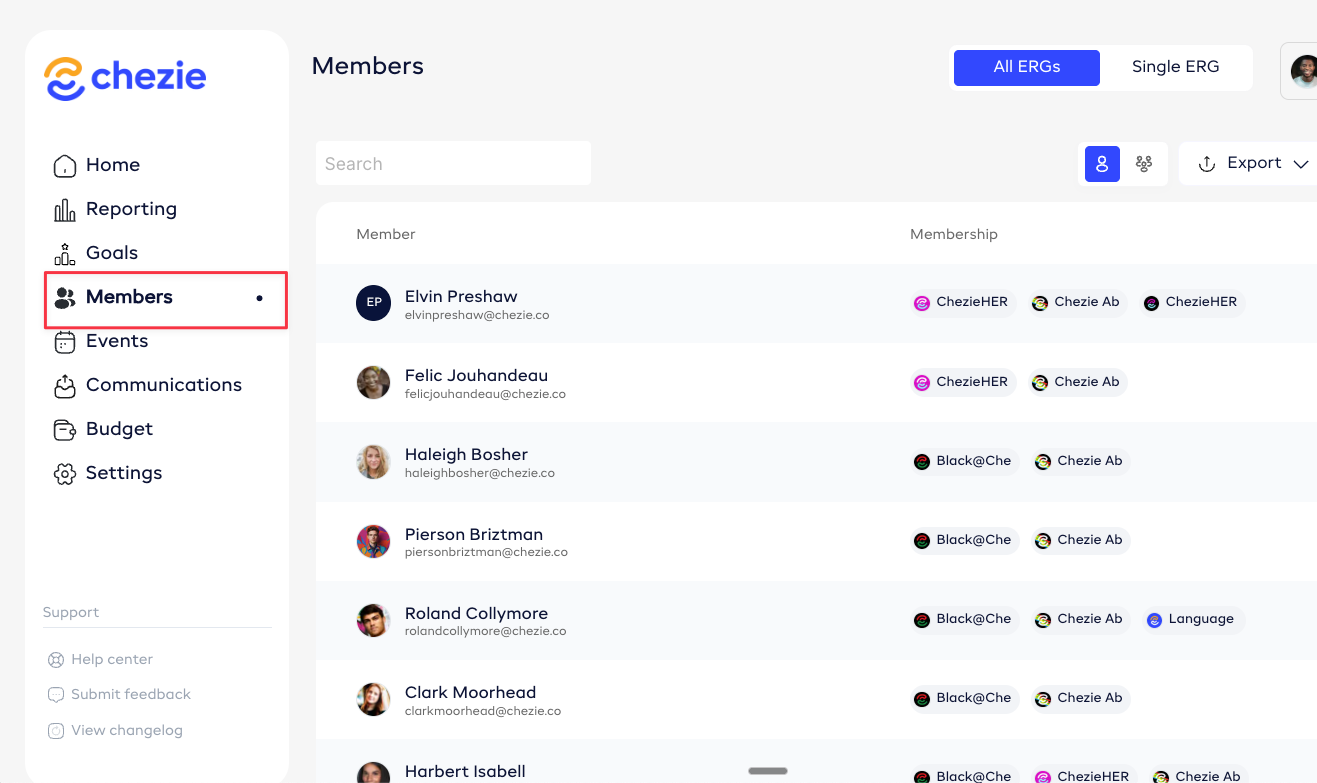
Click Members

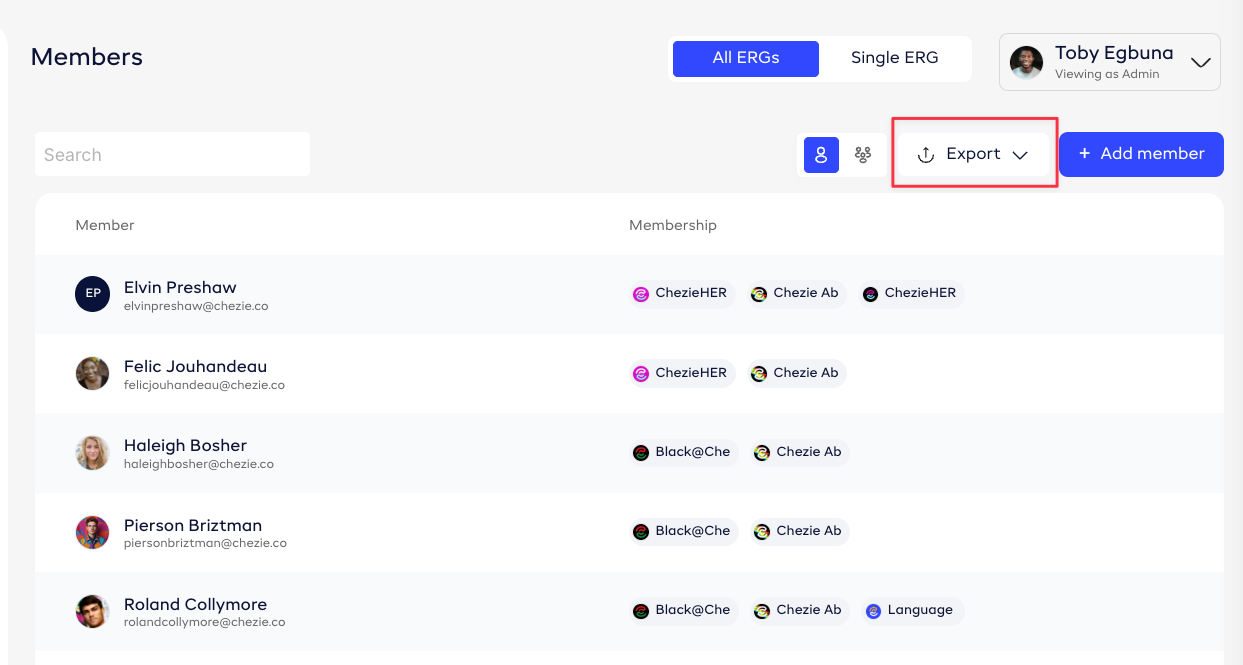
- Click the Export button

- You have two options:

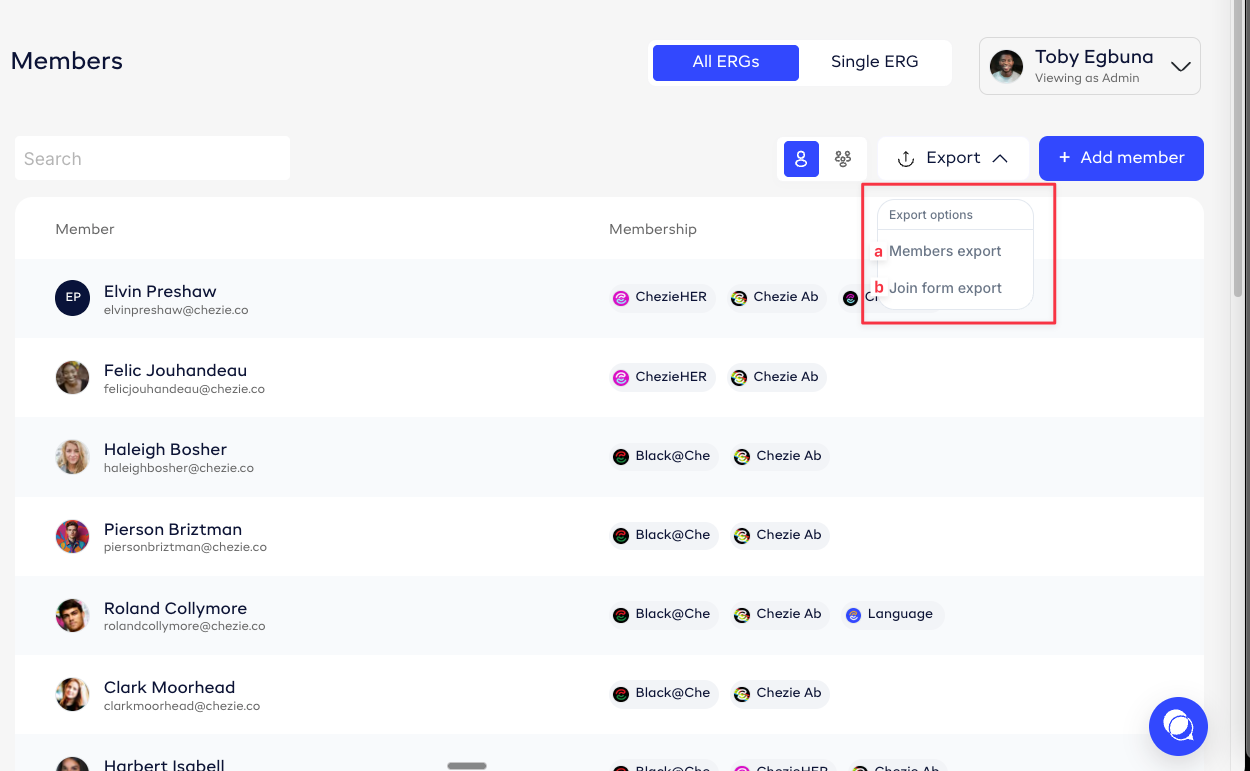
a. Export the members list, which will include HRIS attributes like Department, Location, and/or Level.
b. Export the join form responses
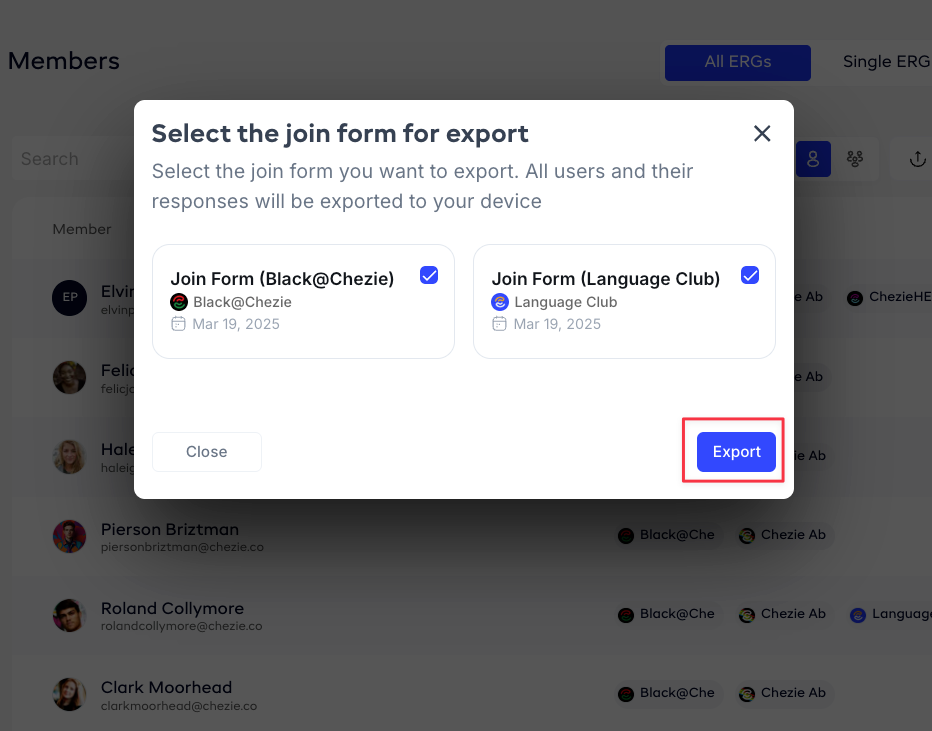
- If you choose to export the join form responses, you’ll be prompted to select the join form(s) that you want to export

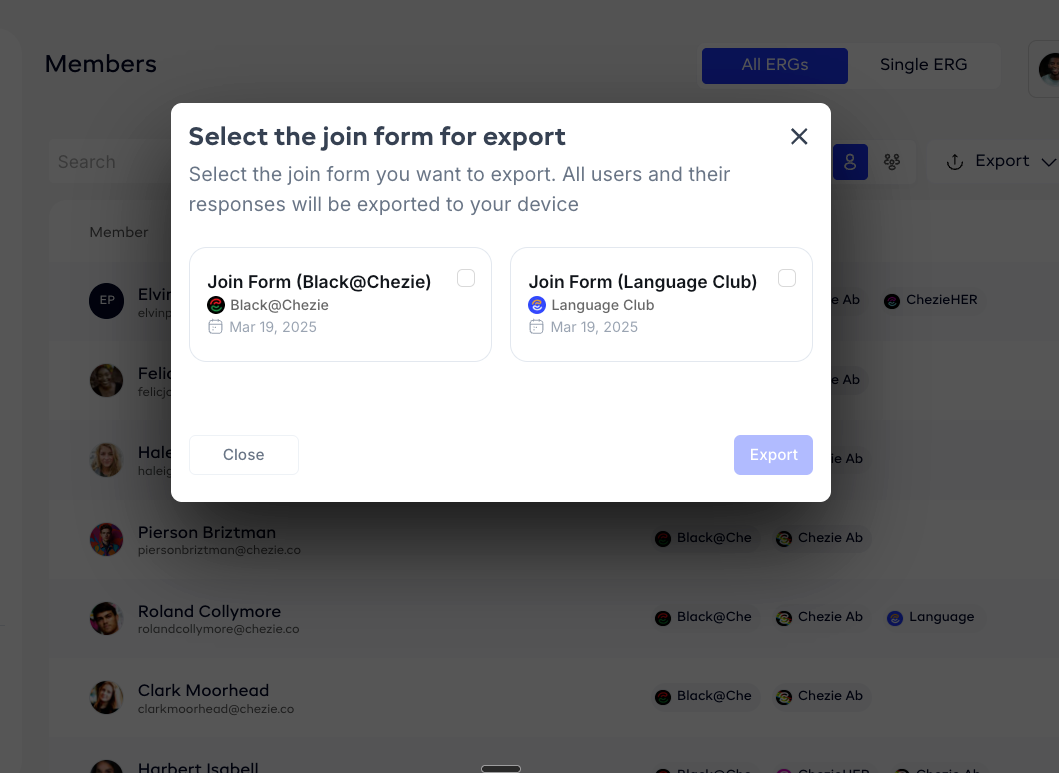
- Select the forms that you want to export and click the Export button.

- Check your email for your exports, and you’re done!